



If you’ve ever watched your phone freeze while editing a photo for Instagram, or felt your laptop slow to a crawl while managing multiple social media accounts, you know how frustrating device performance issues can be. The good news is that many of these problems have a simple solution: clearing device memory.
When your phone or computer runs out of memory, everything slows down. Social media apps take longer to load. Editing tools become unresponsive. Even simple tasks like posting an update can feel like a chore. For social media managers and content creators who rely on their devices every day, these slowdowns add up quickly.
Clearing device memory social media productivity isn’t complicated, but it does require some attention. By understanding how memory works and taking a few simple steps to keep your devices clean, you can work faster, publish content more smoothly, and avoid the stress of constant technical problems. This guide will show you practical ways to free up space and keep your devices running at their best.
Why Device Memory Matters for Social Media Work
Your device has two types of memory that affect how well it runs: storage and RAM. Storage is where your files, apps, and photos live. RAM is the temporary workspace your device uses to run programs and handle tasks in real time.
When you work on social media, you’re often using both types heavily. You might have Instagram open while editing a video, downloading graphics, and checking analytics in a browser. Each of these activities uses RAM, and the files you create take up storage space.
If your device runs low on either type of memory, problems start. Apps crash without warning. Videos take forever to export. Your device might show a system out of memory warning and force you to close programs. For anyone who depends on smooth workflows to publish content on time, these interruptions are more than annoying—they’re productivity killers.
Social media apps themselves are often memory-hungry. They cache images, store offline data, and keep background processes running even when you’re not actively using them. Photo and video editing apps are even more demanding. When these apps compete for limited memory, your device struggles to keep up.
The connection between clearing device memory and social media productivity becomes clear once you experience it. A device with plenty of free memory responds quickly. Apps open fast. Editing feels smooth. You can switch between tasks without waiting. That kind of responsiveness makes a real difference when you’re managing multiple platforms, creating content on deadlines, or responding to comments and messages throughout the day.
Signs Your Device Needs a Memory Cleanup

Sometimes the signs are obvious: your phone tells you storage is almost full, or your computer freezes when you try to open another tab. But memory problems often start with subtler symptoms that gradually get worse.
One common warning sign is slow app performance. If Instagram or TikTok takes several seconds to load, or your editing app lags when applying filters, low memory could be the cause. The same goes for delays when switching between apps—if there’s a pause before each app appears, your device may be struggling to manage its resources.
Unexpected crashes are another red flag. When apps close suddenly without explanation, it often means they ran out of available memory. This is especially common with resource-heavy apps like video editors or graphic design tools.
You might also notice your device heating up more than usual. When memory is tight, your device works harder to manage what it has, which generates extra heat. Combined with poor battery life, this suggests your system is under strain.
Understanding your phone memory storage capacity can help you know when you’re getting close to trouble. Check your device settings regularly to see how much space you have left and what’s using the most memory.
Temporary files also pile up over time. Cached data from websites and apps, along with cookies and trackers on social platforms, can consume significant storage without you realizing it. These files are designed to speed up your experience, but when they accumulate, they have the opposite effect.
If you’re experiencing any of these symptoms, it’s time to clear some memory and give your device room to breathe.
How to Clear Memory on Your Phone
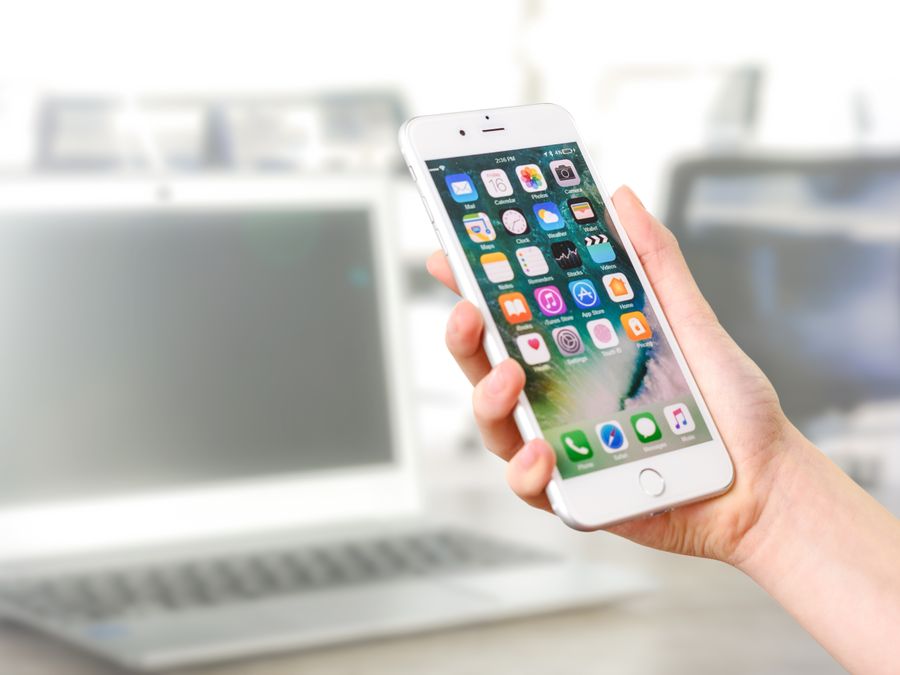
Clearing memory on your phone is straightforward, and you don’t need any special technical knowledge. Start by looking at what’s taking up the most space.
On most phones, you can find a storage breakdown in your settings. Look for categories like apps, photos, videos, and system files. This view shows you exactly where your memory is going, so you can make smart decisions about what to delete.
Unused apps are often the biggest opportunity. Think about how many apps you downloaded once and never opened again. Each one takes up storage and sometimes runs background processes that use RAM. Go through your app list and delete anything you haven’t used in the past month or two.
Next, tackle your media files. Photos and videos from social media work can quickly fill up your storage, especially if you save multiple versions of each piece of content. Consider managing photos across social platforms more carefully by organizing what you keep and deleting duplicates or failed shots.
Clearing app cache is another effective step. Most social media apps store cached data to help them load faster, but this data can grow large over time. You can usually clear cache through your phone’s app settings without losing any important information. Your login details and preferences stay intact—the app just has to reload images and other content the next time you use it.
Don’t forget about downloads. Files you’ve saved from messages, emails, or browsers often sit in your downloads folder forgotten. Review this folder regularly and delete anything you no longer need.
Finally, restart your phone after doing a cleanup. This clears temporary files from RAM and gives your device a fresh start. You’ll often notice an immediate improvement in responsiveness.
How to Clear Memory on Your Computer
Computers accumulate digital clutter just like phones, but they usually have more memory to work with—so problems can take longer to notice. Still, regular cleanup makes a difference.
Start with your downloads folder. This is where files go to be forgotten. Take a few minutes to review what’s there and move important files to organized folders while deleting the rest.
Temporary files build up on computers too. Your operating system creates these files to help programs run, but they often stick around after they’re no longer needed. Both Windows and Mac have built-in tools to clear temporary files. On Windows, search for “Disk Cleanup.” On Mac, you can use the storage management feature in System Preferences.
Browser data deserves attention as well. Every website you visit leaves behind cached files, cookies, and history data. Clearing your browser cache periodically helps free up storage and can even make your browser run faster. You can usually find this option in your browser’s settings under privacy or history.
Old applications that you no longer use should be uninstalled completely. On Windows, use the Programs and Features control panel. On Mac, drag unwanted apps to the Trash—but remember to empty the Trash afterward to actually free up the space.
If your computer has been running slowly, consider which programs launch automatically when you start your device. Many applications set themselves to run at startup, using RAM and slowing down your boot time. Review your startup programs and disable anything that doesn’t need to run immediately.
For computers used heavily for social media management, these cleanups should happen at least monthly. The time you invest pays back in smoother performance during your daily work.
Using Cloud Storage to Free Up Space
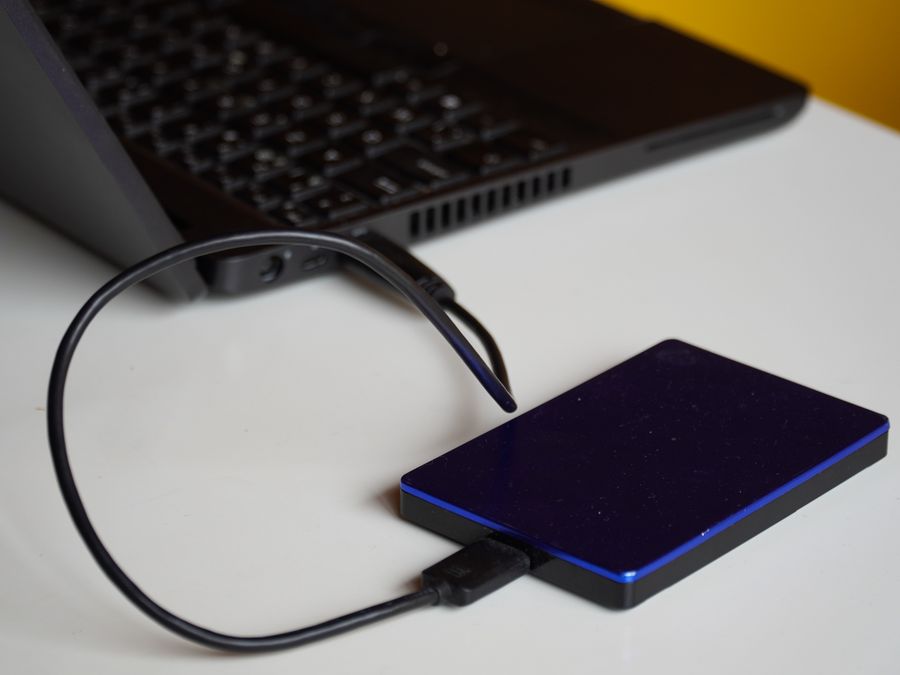
One of the smartest ways to free up local memory while keeping your files accessible is to use cloud storage. Instead of storing everything on your device, you move files to remote servers and access them through the internet when you need them.
For social media work, this approach makes a lot of sense. You probably create and save many photos, videos, graphics, and documents. Keeping all of these on your phone or computer fills up storage fast. Moving them to the cloud frees that space while still letting you access your files from any device.
Google Photos is a popular option for backing up images and videos. It works automatically in the background, uploading new photos as you take them. You can then delete the local copies while keeping the cloud versions safe. This is especially helpful for social media managers who capture lots of content on their phones.
For general file storage, Dropbox offers a flexible solution. You can store documents, spreadsheets, design files, and media assets in organized folders. The desktop and mobile apps make it easy to access your files when needed, and you can share folders with team members for collaborative work.
If you use Apple devices, iCloud storage integrates naturally with your iPhone, iPad, and Mac. It can automatically offload older files and photos to the cloud while keeping thumbnails on your device. When you need a file, it downloads quickly. This happens behind the scenes, so your device always appears to have your files without actually storing them locally.
The key to making cloud storage work for you is choosing a service that fits how you work. Consider factors like how much free storage you get, how easy the app is to use, and whether it works well across all your devices. Once you’ve set up automatic backups, you’ll steadily free up local memory without having to manually move files around.
Productivity Tools That Reduce Device Strain

Beyond cleaning up your device, you can also choose tools and workflows that put less strain on your memory in the first place. Smart tool choices help you work efficiently without pushing your device to its limits.
Web-based tools are often lighter on resources than desktop applications. When you use a browser-based graphic design tool or social media scheduler, most of the heavy processing happens on remote servers rather than on your computer. Your device just displays the interface. This means you can run powerful tools even on older or less capable devices.
Finding content creation tools that speed up workflows often means finding tools that are designed for efficiency. The best tools load quickly, respond smoothly, and don’t freeze when you’re working with large files. They’re built to help you work faster, not to slow you down.
AI tools for social media content creation can be particularly helpful here. Many AI-powered platforms handle resource-intensive tasks like image generation, copywriting, and content optimization on their own servers. You get the results without your device doing the hard work. This lets you create more while straining your memory less.
Scheduling tools also reduce device workload. Instead of having multiple social media apps open all day, you can schedule posts in advance using a single dashboard. This means fewer apps running simultaneously and less demand on your RAM.
Consider also how many browser tabs you keep open. Each tab uses memory, and it adds up quickly. Browser extensions can help by suspending inactive tabs automatically, or you can simply practice closing tabs you’re not actively using.
When choosing new tools for your social media work, think about more than just features. Consider how the tool performs on your device. Read reviews that mention speed and reliability. Try free trials before committing. The right tools should help you work better, not make your device struggle.
Building a Regular Maintenance Routine
Keeping your devices clean isn’t a one-time task. Memory fills up again as you continue working, so you need an ongoing routine to stay on top of it.
A simple approach is to schedule a quick cleanup once a week. Spend just ten or fifteen minutes reviewing your downloads, deleting files you no longer need, and clearing app cache. This small investment prevents problems from building up.
Monthly, do a deeper review. Look at your installed apps and uninstall ones you haven’t used. Check your photo library for duplicates and failed shots. Review your cloud storage to make sure backups are working correctly. Move files off your device that you don’t need instant access to.
Consider automating social media tasks where possible. Automation not only saves you time—it can also reduce how often you need to have resource-heavy apps open. When tools work in the background or on schedules, you’re not constantly opening and closing programs, which keeps your device running smoother.
Set reminders if you need them. It’s easy to forget about maintenance when you’re busy with daily work. A calendar reminder once a week nudges you to take care of your devices before slowdowns start affecting your productivity.
Some people find it helpful to tie maintenance to another routine. Maybe you clear phone memory every Sunday evening while planning the week ahead. Maybe you do computer cleanup on the first of each month. Find a pattern that works for you and stick with it.
Consistency matters more than perfection. Even irregular maintenance is better than none at all.
How a Clean Device Boosts Social Media Results
When your devices run well, your social media work improves in ways that go beyond just convenience. Speed and reliability directly affect what you can accomplish.
A responsive device lets you react quickly. When something goes viral or a conversation heats up, you can jump in without waiting for apps to load. This responsiveness helps you boost your Instagram visibility and stay relevant on fast-moving platforms.
Better device performance also means smoother content creation. You can edit photos without lag, render videos without crashes, and juggle multiple tasks without frustration. This lets you produce higher-quality content and produce it faster.
Exploring AI-powered ways to boost engagement becomes easier when your device can handle advanced tools without slowing down. The same goes for experimenting with new platforms or features—you need reliable hardware to test new ideas effectively.
There’s also a mental benefit. Working on a slow, glitchy device is stressful. You lose focus waiting for things to load. You worry about crashes. A clean, fast device removes that friction and lets you concentrate on creating efficient social media content instead of fighting your tools.
Clearing device memory social media productivity isn’t glamorous work, but it has real impact. The time you spend maintaining your devices pays back in smoother workflows, better content, and less daily frustration. Make it a habit, and you’ll wonder how you ever worked without it.