



Whether you’re creating content for social media, putting together a presentation, or just cleaning up a personal video, trimming is one of the most useful skills you can learn. It’s simple, fast, and can make a huge difference in how your videos look and feel.
Trimming videos is all about removing the parts you don’t need—like awkward pauses at the start, shaky footage at the end, or anything that doesn’t add value. You don’t need expensive software or professional editing experience to get started. With the right tools and a few basic techniques, anyone can trim a video in minutes.
This guide walks you through everything you need to know about trimming videos. You’ll learn what trimming actually means, why it matters, which free tools work best, and how to trim clips on both desktop and mobile devices. We’ll also cover platform-specific tips and common mistakes to watch out for. Let’s get started.
What Does Trimming a Video Mean?

Trimming a video means cutting off unwanted parts from the beginning or end of a clip. Think of it like using scissors on a piece of tape. You’re not rearranging anything in the middle—you’re simply shortening the clip by removing what comes before or after the content you want to keep.
This is different from splitting or cutting. When you split a video, you divide it into separate pieces somewhere in the middle. When you cut, you might remove a section from the middle of a clip entirely. Trimming focuses specifically on the start and end points.
For example, imagine you recorded a 30-second video, but the first five seconds show you reaching to press the record button and the last three seconds show you walking away. Trimming lets you remove those extra moments so your video starts and ends exactly where it should.
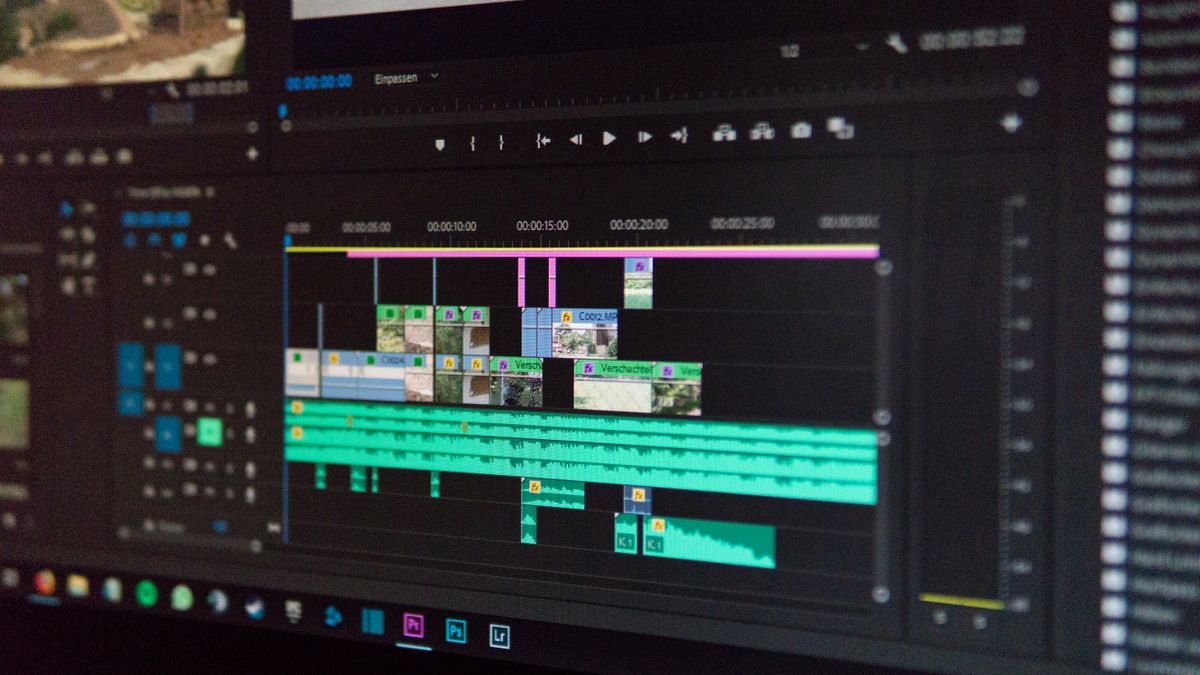
Most video editors show your clip on a timeline with handles on each end. You drag these handles inward to set new start and end points. The trimmed portions disappear from the final video, leaving you with a clean, focused clip.
Trimming is usually non-destructive, meaning the original file stays intact. You’re creating a new version with different boundaries, not permanently deleting footage from your source file. This makes it safe to experiment without worrying about losing your original recording.
Why Trimming Your Videos Matters
Trimming might seem like a small thing, but it has a big impact on how people experience your videos. Clean, well-timed clips are easier to watch, more professional, and more likely to hold attention. Here’s why taking a few extra seconds to trim your footage is worth the effort.
Better Viewer Engagement
People decide quickly whether to keep watching a video or scroll past it. If your video starts with dead air, a loading screen, or unfocused footage, viewers may leave before getting to the good stuff. Trimming ensures your video grabs attention right from the first frame.
The same applies to endings. A video that drags on after the main content is over can feel awkward. Cutting off those extra seconds keeps your message tight and your audience engaged until the final moment. This can help you boost online visibility by encouraging more likes, shares, and comments on social platforms.
Meeting Platform Requirements
Different social media platforms have different rules about video length. Some limit how long your clips can be, which means you’ll need to trim longer footage to fit. Knowing how to quickly adjust your video length is essential if you’re posting across multiple channels.
Beyond length limits, platforms often have preferred formats and pacing. Shorter, punchier videos tend to perform better in fast-scrolling feeds. Trimming helps you tailor your content to fit each platform’s style while keeping your message clear.
Creating a Consistent Brand
If you’re building a channel or content library, consistency matters. Trimmed videos look more intentional and polished than raw, unedited footage. When every video starts cleanly and ends at the right moment, you create a more professional impression.
This is especially important for YouTube branding. Your videos become part of a larger identity. When viewers recognize your style—including how your videos are paced and presented—they’re more likely to subscribe and return for more content.
Saving Storage Space
Untrimmed videos often contain unnecessary footage that takes up space. If you’re exporting files to share or upload, trimming first means smaller file sizes and faster uploads. This is especially helpful when you’re working with limited storage or slow internet connections.
Best Free Tools for Trimming Videos
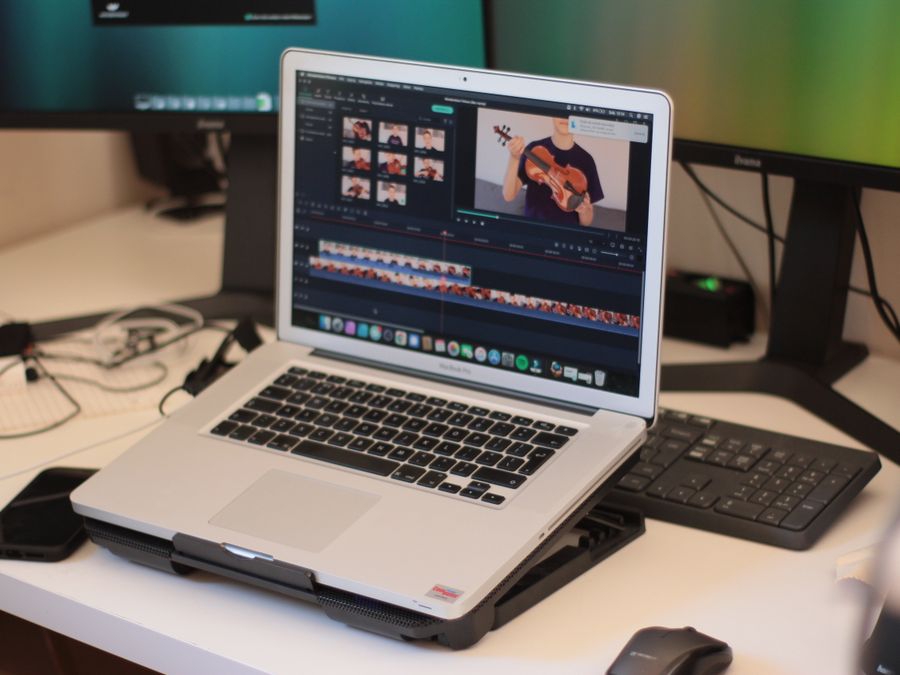
You don’t need to spend money to trim your videos. There are plenty of free tools available that make the process quick and easy. Whether you prefer working in your web browser or using desktop software, you’ll find an option that fits your needs.
Browser-Based Options
Online editors are perfect when you want to trim a video without installing anything. They run directly in your browser, so you can use them on almost any computer.
Clipchamp is a popular browser-based option that works well for basic trimming tasks. You upload your video, drag the handles on the timeline, and export the trimmed version. It’s straightforward and doesn’t require much learning.
Kapwing is another online editor that handles quick trims nicely. You can set your start and end points visually, preview the results, and download your finished clip. It also supports other basic editing features if you want to do more than just trim.
Browser-based tools are convenient because they work on any operating system. However, they do require an internet connection and may have file size limits on free plans. For occasional trimming of shorter clips, they’re often the easiest choice.
Desktop Software Options
If you trim videos regularly or work with larger files, desktop software gives you more power and flexibility. Many free programs offer professional-grade features without the cost.
Modern AI video creation tools often include automated trimming features that can detect and remove silent sections or suggest optimal cut points. These can speed up your workflow if you’re processing multiple clips.
Traditional video editors remain popular choices as well. They give you precise control over every frame and can handle longer or higher-resolution footage without the limitations of browser-based tools. We’ll cover specific desktop options in the next section.
When choosing a tool, consider how often you’ll be trimming videos and what kind of footage you work with. Occasional trims of short clips work fine with online editors. Regular editing of longer projects benefits from installed software.
How to Trim Videos on Desktop
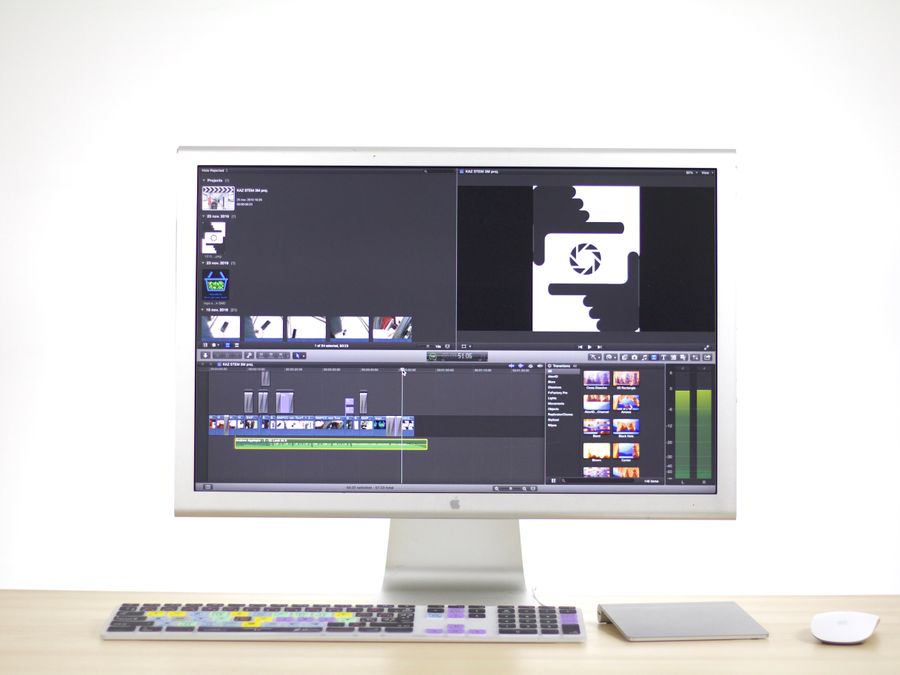
Desktop software offers precise control and can handle larger files than most online tools. Whether you’re on Mac, Windows, or Linux, there’s a free option that works for you. Here’s how to trim videos using desktop programs.
Before You Start
Always keep a copy of your original video before trimming. While most modern editors use non-destructive editing, it’s good practice to have a backup. If something goes wrong or you change your mind about your cuts, you’ll be able to start fresh.
If you’ve ever accidentally deleted important footage, you know how valuable this habit is. Having the right backup strategy means you can recover deleted video files if things don’t go as planned.
Trimming on Mac
iMovie comes free with Mac computers and is one of the easiest ways to trim videos. Here’s how to use it:
- Open iMovie and create a new project or open an existing one.
- Import your video by clicking the import button or dragging the file into the media library.
- Drag your clip onto the timeline at the bottom of the screen.
- Position your cursor at the beginning or end of the clip until you see the trim handle appear.
- Click and drag the handle inward to remove the unwanted portion.
- Preview your trimmed clip by pressing the spacebar to play.
- When you’re happy with the result, go to File and select Share to export your video.
iMovie shows yellow handles at each end of your clip when trimming. You can also use the precision editor for frame-by-frame control when you need exact timing.
Trimming on Windows, Mac, or Linux
Shotcut is a free open-source editor that runs on all major operating systems. It’s more feature-rich than some basic editors, but trimming is still straightforward:
- Download and install Shotcut from the official website.
- Open the program and click Open File to import your video.
- Your video appears in the preview window. Use the playhead to navigate to where you want to start your trimmed clip.
- Click the Set In Point button (or press I on your keyboard) to mark the new starting point.
- Move the playhead to where you want your clip to end.
- Click the Set Out Point button (or press O) to mark the ending point.
- Add the trimmed portion to the timeline by clicking the plus button.
- Export your video by going to File, then Export Video, and choosing your format settings.
Shotcut also supports dragging the edges of clips on the timeline, similar to other editors. Use whichever method feels more natural to you.
Tips for Desktop Trimming
Use keyboard shortcuts to speed up your workflow. Most editors let you set in and out points with single keystrokes, which is faster than clicking buttons. Zooming in on your timeline helps when you need precise cuts, especially if you’re trimming to a specific beat in music or a particular word in dialogue.
Watch your trimmed video all the way through before exporting. Sometimes a cut that looks right in the editor feels abrupt when you watch the final result. A few seconds of preview time can save you from exporting a video twice.
How to Trim Videos on Mobile
Mobile apps make it easy to trim videos right on your phone. This is perfect when you’ve just recorded something and want to clean it up before sharing. Most smartphones also include basic trimming features in their built-in photo apps.
Using Your Phone’s Built-In Tools
Both iPhone and Android devices have native video trimming capabilities. On iPhone, open your video in the Photos app, tap Edit, and drag the yellow handles at either end of the timeline to set your new start and end points. Tap Done and choose to save your changes as a new clip.
On Android, the exact steps vary depending on your device, but most use a similar approach. Open your video in the Gallery or Photos app, look for an Edit or Trim option, and adjust the handles to select the portion you want to keep.
Built-in tools work well for simple trims but may lack advanced features. For more control, dedicated editing apps offer additional options.
Using Dedicated Mobile Apps
CapCut is a popular free mobile app that makes trimming videos easy on both iPhone and Android. Here’s how to trim with it:
- Download CapCut from your device’s app store and open the app.
- Tap New Project and select the video you want to trim from your camera roll.
- Your video appears on a timeline at the bottom of the screen.
- Tap on the clip in the timeline to select it.
- Drag the white handles at either end of the clip to adjust where it starts and ends.
- Use the playhead to preview your trimmed video.
- When you’re satisfied, tap the export button in the upper right corner.
- Choose your resolution settings and save the video to your device.
CapCut also includes additional editing features like filters, text, and music. If you’re looking to create viral videos, having these options in one app makes it easier to polish your content before posting.
Mobile Trimming Tips
Work in a horizontal orientation when trimming on your phone. This gives you a longer timeline and makes it easier to position your trim points precisely. Pinch to zoom on the timeline for finer control when you need frame-accurate cuts.
Save your trimmed video as a new file rather than overwriting the original. Most apps offer this option. It protects your original footage in case you want to make different edits later.
Battery life can be a concern when editing video on mobile devices. Plug in your phone if you’re working on a longer project to avoid interruptions.
Trimming Videos for Different Social Platforms
Each social media platform has its own requirements and preferences for video length. Understanding these helps you create content that performs well wherever you post it. Here’s what you need to know about trimming videos for popular platforms.
YouTube Shorts
YouTube Shorts are vertical videos that can be up to 60 seconds long. If your original footage runs longer, you’ll need to trim it down to fit. The platform favors content that captures attention immediately, so trim any slow openings or unnecessary endings.
Keep in mind that Shorts compete in a fast-scrolling feed. Your trimmed video should deliver value quickly. Consider front-loading your most interesting content so viewers stay engaged from the first second.
Instagram Reels and Stories
Instagram Reels can be up to 90 seconds, while Stories are limited to 60-second segments. For Reels, tight editing and good pacing help keep viewers watching. Trim out any dead time to maintain momentum throughout your video.
Stories work best when they feel immediate and authentic, but that doesn’t mean you shouldn’t trim them. Removing false starts or awkward endings keeps your Stories looking polished. Learning to repurpose content into engaging videos often starts with knowing how to trim effectively for each format.
TikTok
TikTok allows videos up to 10 minutes, but shorter content typically performs better. Most successful TikTok videos are under a minute, and many of the most viral clips are 15 to 30 seconds.
Trim ruthlessly for TikTok. Every second should add value. The platform’s algorithm pays attention to completion rates, so a well-trimmed 20-second video that people watch all the way through often outperforms a longer video that viewers abandon halfway.
Twitch Clips and Highlights
Streamers often create clips from their broadcasts to share on other platforms. Twitch clips can be up to 60 seconds, and trimming helps you capture exactly the right moment—whether it’s a funny reaction, an impressive play, or an important announcement.
If you’re trying to grow on Twitch, sharing well-trimmed highlight clips on other social media channels can attract new viewers to your streams. Focus on moments that make sense out of context and showcase your personality or skills.
General Platform Tips
When posting the same content to multiple platforms, you may need different trim lengths for each one. Start with your longest version and create shorter cuts as needed. This approach is more efficient than re-editing from scratch for each platform.
Pay attention to how different platforms display videos in their feeds. Some show the first frame as a preview, while others autoplay. Trim your videos so the opening frame and first few seconds look appealing and give viewers a reason to keep watching.
Common Video Trimming Mistakes to Avoid
Trimming seems simple, but a few common mistakes can undermine your results. Being aware of these pitfalls helps you create cleaner, more professional videos.
Cutting Too Close
One of the most frequent errors is trimming too close to the action. If someone finishes speaking and you cut immediately after their last word, the video can feel abrupt. Leave a small buffer at the start and end of your content—typically half a second to a second—to let the video breathe.
The same applies to action shots. If a scene involves movement, make sure the action completes naturally before you cut. Trimming mid-motion can look jarring.
Ignoring Audio Transitions
Video and audio don’t always start and stop at the same point. If there’s background noise, music, or ambient sound, pay attention to how your trim affects it. Cutting audio mid-word or mid-note creates an unpleasant experience for viewers.
When possible, trim at natural audio breaks—pauses in speech, gaps between musical phrases, or quiet moments in ambient sound. This creates smoother transitions that feel intentional rather than rushed.
Not Previewing Before Exporting
Always watch your trimmed video from start to finish before exporting the final file. What looks right on a timeline might feel different when played back normally. A quick preview catches problems before you’ve invested time in exporting and uploading.
Overwriting Original Files
Many apps offer the option to save over your original file. Resist this temptation. You never know when you’ll want to go back and make a different edit. Always save trimmed versions as new files so your original footage remains intact.
Forgetting Platform Specifications
Each platform has different requirements beyond just length. Aspect ratio, resolution, and file format all matter. After trimming, double-check that your export settings match what the platform expects. A perfectly trimmed video that gets rejected for technical reasons is frustrating to fix after the fact.
Trimming videos is a fundamental skill that improves almost every piece of video content you create. Start with the basics—remove the dead time at the beginning and end of your clips—and work up to more refined edits as you get comfortable. With practice, trimming becomes second nature, and your videos will look more polished and professional as a result.